01
Per-session, always
Metrics are stored in a map keyed by sessionID. The sidebar renders the session you are attached to — never a sum across serve sessions.
A per-session sidebar plugin for the OpenCode TUI. Speed, TTFT, token counts, cache, and timing — keyed by session, rendered in the sidebar for the session you are attached to, not a global total across every serve session.
The serve-mode gap
A footer-style status line keeps one request view. Under `opencode serve`, several attached sessions can run at once, so the bar shows aggregate or wrong-session numbers. opencode-metrics keys every request by sessionID and reads the active session_id from OpenCode's sidebar_content slot.
Metrics are stored in a map keyed by sessionID. The sidebar renders the session you are attached to — never a sum across serve sessions.
Click the header badge. Expanded shows the full breakdown; collapsed keeps a compact Speed + Session glance. Collapse state persists.
Sidebar order, per-row visibility, collapse persistence, and force-to-top live in the shared tui-preferences.jsonc. Coexists with Magic Context.
The last request's numbers stay visible until the next request. Speed and Elapsed freeze at completion; Session keeps counting. Badge contrast adapts to inverted-color themes.
In the TUI
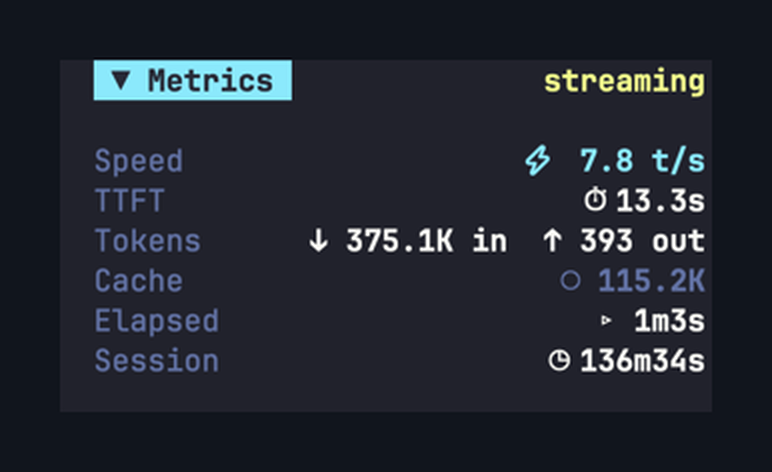
A real session, mid-stream: Speed, TTFT, Tokens, Cache, Elapsed, and Session for the attached session.
What it shows
The expanded section leads with the same pair the collapsed glance shows, so the two states stay consistent. Toggle each row independently in preferences.
Install
Add opencode-metrics to your OpenCode TUI plugin list and restart. Tune the sidebar order and per-row visibility in tui-preferences.jsonc whenever you like.
{
  "plugin": [
    "opencode-metrics"
  ]
}

// Optional — ~/.config/opencode/tui-preferences.jsonc
{
  "opencode-metrics": {
    "order": 160,
    "section": { "collapsed": null, "rememberCollapsed": true },
    "rows": {
      "speed": true, "elapsed": true, "ttft": true,
      "input": true, "output": true, "cache": true, "session": true
    }
  }
}
A row shows only when both tui-preferences.jsonc and the runtime opencode-bar.json agree it is visible. Default order 160 places it just below Magic Context.
For AI agents
If you are OpenCode or an AI coding agent setting this up, copy the steps verbatim. Touch only the opencode-metrics key, keep sibling plugins, and tell the user to open a fresh TUI window.
GOAL: install opencode-metrics into the user's OpenCode TUI.

1. Open ~/.config/opencode/tui.jsonc (create if missing).
2. Ensure the "plugin" array contains "opencode-metrics".
   If absent: { "plugin": ["opencode-metrics"] }
   Keep existing entries (magic-context, oh-my-openagent, ...).
3. No version suffix - "opencode-metrics" resolves latest.
4. Tell the user to open a NEW TUI window; plugins load at
   startup and are not hot-reloaded.

VERIFY: a "Metrics" section appears in the sidebar. Click its
header badge to confirm collapse/expand.

NOTE: TUI-only plugin ("oc-plugin": ["tui"]); per-session by
design - each serve session shows its own metrics.
Right session, right numbers